

Do you have a staff bio page? If so, then scroll down to see a few ways to spice it up. If you don’t have a staff bio page then create one. Parents and campers alike really like to view the current staff and learn about them. It could be one of your most visited pages.
I have seen all sorts of staff bio pages, from names and job descriptions of the admin staff only (yawn) to pages with photos and educational bios of the leadership staff (a bit better). Here are 20 ways to spice up your bio page. If you have a camp staff bio page that you think rocks, put the link in the comments section below.
1. LIST THE ENTIRE STAFF
Parents and campers don’t want to see just the leadership or admin staff on the staff page, they want to see the counselors, waterfront staff, cooks, ropes staff, etc. “But we have over 100 staff!” If you add staff as they are hired it shouldn’t be a daunting task, and, of course, once you have them all in, the return staff will already be on the page.
2. ADD PHOTOS
It’s not enough to just have names, you need to have photos, too. Your clients (parents and campers) want to put a face to the name. It can be difficult to get photos from each staff member. One way to help out with that is by taking photos during interviews. It not only can be used for the staff bios page, but it will also help you remember who Jackie or Steve was if you have hundreds of interviews. For your return staff try to use camp photos of them from last summer.
3. ALTER THE PHOTOS
I like to turn the photos to black and white and when a visitor hovers their mouse over the photo it adds color, showing the original photo.

Hover your mouse over the photo.
There are other ways to alter the photos like adding a border, adjusting the brightness or contrast, giving it a retro look, etc.. Using your favorite photo design program to play with a photo and find the look you like.
4. CREATE GIFs
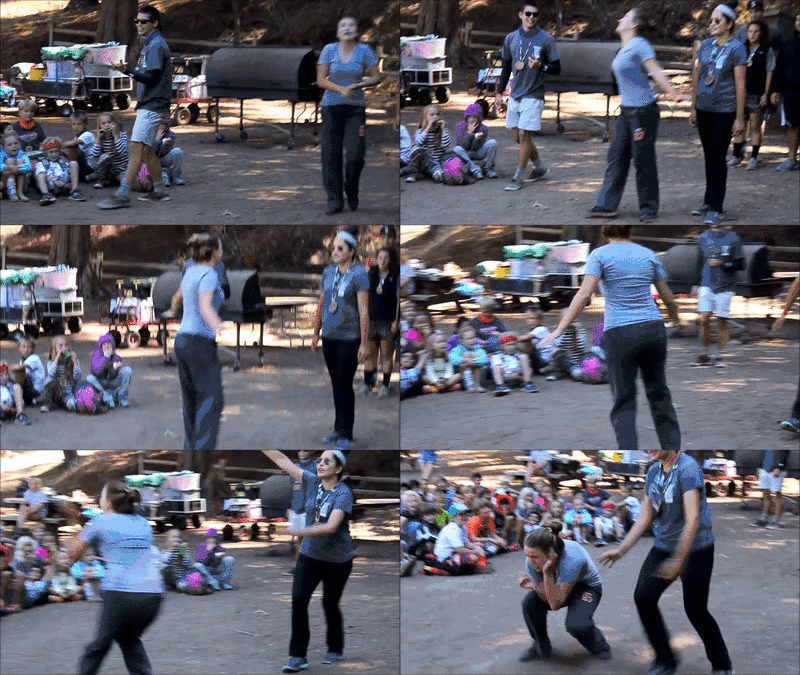
If you are really ambitious, you can create GIFs for each person. You can either take short videos of each person with a camera, phone or webcam and make the GIFs, or you can have them do it themselves as an option to send to you to replace their photo. You could even hold a contest for the best one. The one below was made using makeagif.com. It’s a clip from a video one of the staff took during a camp skit. If I were going to create GIFs for a staff bio page, I would probably just video them waving “hello” or doing a fun little dance while facing the camera.
5. HAVE STAFF WRITE THEIR OWN BIOS
Ask the staff to write their own bios in the third person. This will give them ownership of what is written about them. You will probably have to edit it for length, but at least you won’t have to write them all out from scratch.
6. HAVE THEM ADD A FUN FACT ABOUT THEMSELVES
Everyone enjoys learning fun facts about others. My fun fact: I can fly a helicopter.
7. SHOW BOTH CAMP NAMES and REAL NAMES
If you use camp names then add each person’s real name as well. Parents appreciate this. Even though my real name is under my camp name on our bio page, the kids can never remember my real name. I will forever be Moose to them, not Curt.
8. ADD AN ALL STAFF PHOTO
Take a photo of the whole staff together during staff training and add it to the bottom of your page. Give parents the big picture of how many staff you have.
9. CREATE A WORD WITH A STAFF PHOTO
Take a group photo of your staff and use Photoshop to add an image to a word. The word could be “CAMP”, “FUN”, your camp name, etc. There are plenty of written and video tutorials online. Just Google ‘adding images to text Photoshop’.

10. ADD OTHER FAMILIAR FACES
You have your leadership staff, your counselors, your activity leaders and even the cooks and maintenance staff, but do you have the camp dog? How about the horses? Do you have the squirrel that hangs around so much that he’s been named by the staff? Adding photos and bios of the camp animals gives your bio page a whimsical feel that campers will love.
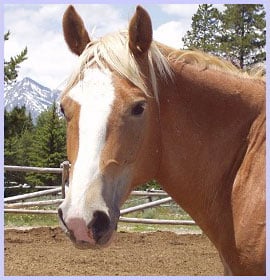
Say hello to Apple Jack. This is his 2nd summer at camp and he is ready to hit the trails. Apple Jack stands 18 hands so he is quite tall, but he is as gentle as they come. We like to refer to him as our Gentle Giant. When camp is not in session Apple Jack likes to roam the mountainside and eat grass. His favorite food is oats and he hopes to one day meet California Chrome, the 2014 Kentucky Derby winner.
__________
So there you have it. Do you have a suggestion on how to spice up a staff bio page? Leave a comment. If you are proud of your camp bio page share the link below. If you know your page needs some work, I hope these 10 ideas are helpful. Have fun with it. Make it magical and ‘campy’.






I love Idea 2 and 3 and have asked our web designer to see if we can pull it off.
Unfortunately, they have many responsibilities and do not have a lot of time to research how to do it. Do you use a program to organize photos online with bios. My hope is to have all the photos black and white and add color to them as the staff commit to returning for the upcoming season.
Any suggestions on programs we can use to pull this off is appreciated.
Ryan, that’s a fantastic idea to add color as the staff commit. It’s pretty easy to do, but does take some time. You need to make black and white copies of all your photos and then upload both a color version and black and white version to your site. Then use the code on this page https://helplogger.blogspot.com/2012/05/create-rollover-image-effect-change.html. If you end up doing it, let me know. I’d love to take a look.